A payment gateway is a service that allows you to accept payments online. Without a configured payment provider, customers cannot complete checkout and you cannot process orders.
Why payment setup matters
Payment gateway configuration is essential because:
| Consideration | Details |
|---|---|
| Checkout requirement | Customers cannot complete checkout without a payment provider. Your store cannot accept orders until payment is configured, even on a free trial. |
| Provider availability | Payment provider availability depends on your location and what you sell. Not all providers are available in all regions, and some restrict certain products. |
| Impact on pricing | Understanding fees helps you price products correctly. Payment fees directly affect your profit margins. |
| Business verification | Some providers require business verification. Setup can take time, so starting early prevents delays. |
Payment provider options
There are two main types of payment providers: Shopify Payments and third party providers.
Shopify Payments is Shopify’s built-in card processing in the admin. When it is available in your region and approved for your business, you usually pay processing fees only and you do not pay Shopify’s separate transaction fee on each order.
A third party provider (for example PayPal or Stripe) connects as an external gateway. Checkout still happens in your store but that provider moves the money and sets its own rates and rules. Shopify often adds a transaction fee when you use a third party instead of Shopify Payments.
Warning
Some providers (including Shopify Payments) may reject certain high risk products such as CBD, some supplements or adult content. Research provider requirements before you invest heavily in your store setup.
Understanding payment fees
New merchants often confuse two types of fees. Here’s a clear breakdown:
| Transaction fees | Credit card processing fees | |
|---|---|---|
| Who charges it? | Shopify (when using a third-party provider) | The payment processor (Shopify Payments or third-party like PayPal) |
| When is it charged? | Only when using third-party payment providers | On every transaction, regardless of provider |
| Typical cost | Usually 0.5% – 2% (varies by Shopify plan) | e.g. 2.9% + $0.30 per transaction |
| Charged by Shopify Payments? | No | Yes |
| Example | You pay extra to Shopify if using PayPal | You always pay this to the actual processor |
Summary example:
Using Shopify Payments: You only pay Credit Card Processing Fees (e.g., 2.9% + $0.30)
Using PayPal: You pay both Transaction Fees (to Shopify) + Credit Card Processing Fees (to PayPal)
Tip
Factor payment fees into your product pricing. If you’re paying 2.9% + $0.30 per transaction, make sure your profit margins account for these costs.
Setting up Shopify Payments
If Shopify Payments is available in your country, it is often the simplest and most cost-effective option. It is fully integrated with the Shopify admin where you can manage your payments and transactions.
Activating Shopify Payments requires business verification, which can take some time to set up. If you decide to use Shopify Payments, it is best to start this process as early as possible.
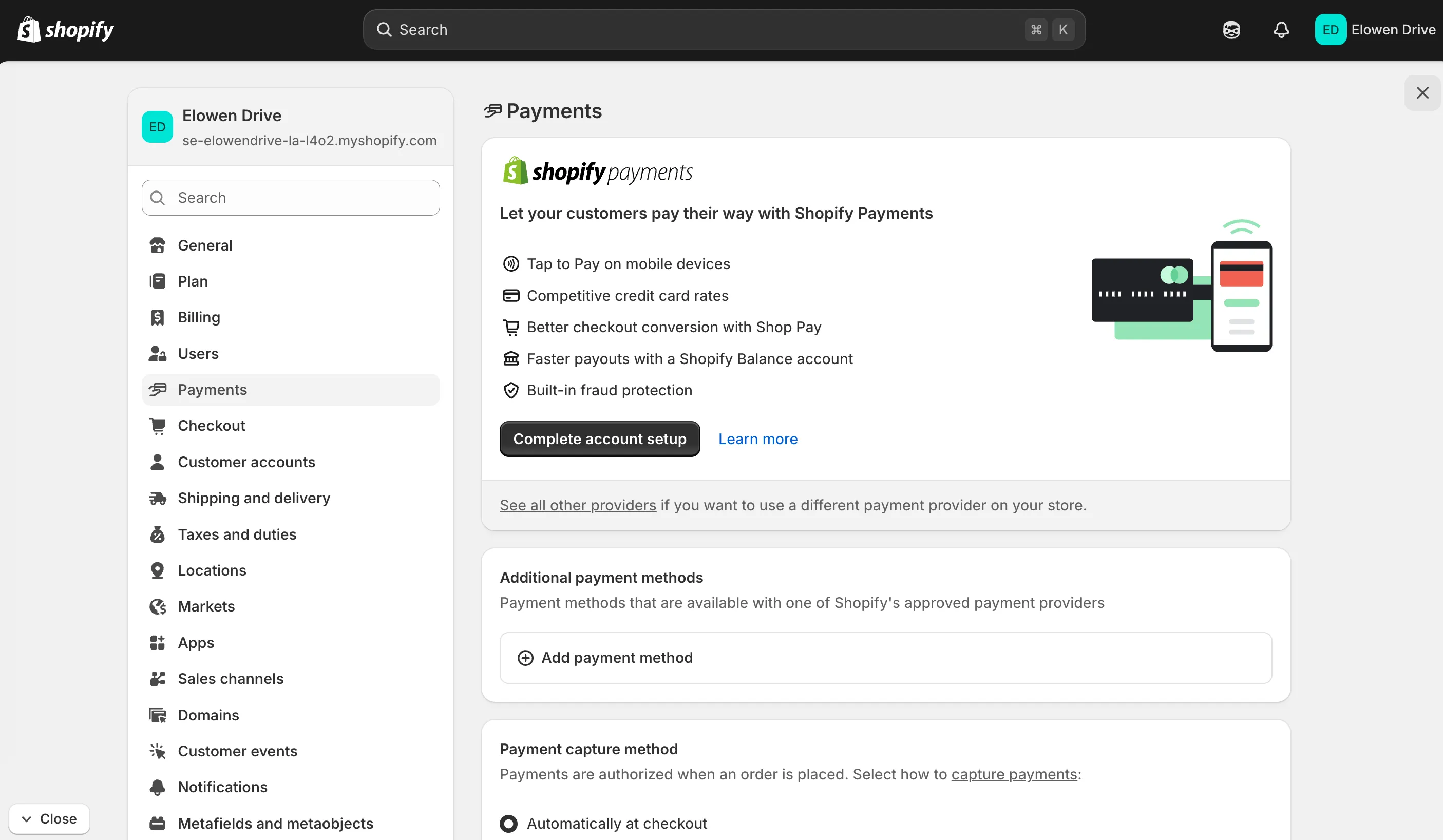
Activating Shopify Payments
- In your Shopify admin, go to Settings → Payments.
- In the Shopify Payments section, click Complete account setup or Activate Shopify Payments.
- Fill in your business information:
- Business type (sole proprietorship, LLC, corporation, etc.)
- Business address
- Tax identification number (EIN, SSN, or equivalent)
- Business bank account details
- Business owner information
- Review and accept the terms and conditions.
- Click Submit for review.
Note
You can start the Shopify Payments setup while on a free trial, but you will not be able to accept real payments until you are on a paid plan.
Business verification process
After submitting your application, Shopify will review your business information. This usually takes 1–3 business days.
- Check your email for any requests from Shopify.
- Return to Settings → Payments to see the status.
- If requested, provide additional documents such as:
- Business registration documents
- Bank statements
- Tax documents
- Proof of identity
- Upload the documents through the Shopify admin when prompted.
Tip
Make sure all business information is accurate. Incorrect or incomplete details are the most common reason for delays or rejection.