Products and product management form the foundation of any successful online store. Adding products and organizing them into collections creates an optimal browsing experience for customers.
Why product management matters
Effective product management is critical for the success of your Shopify store. Here’s why:
| Key reason | Why it matters |
|---|---|
| You cannot launch an empty store | Customers need products to browse and purchase. Without products, your store has nothing to sell. |
| Product information affects shipping calculations | Accurate weight and dimensions are required to calculate correct shipping rates for your customers. |
| Organization improves customer experience | Well structured collections make it easier for customers to find what they’re looking for. |
| Product details impact SEO (Search Engine Optimization) and visibility | The title and description of each page that search engines (Google, Bing, etc.) use to understand and display your store in search results. This is important for your store to be found by potential customers. |
Adding products
Every product should include a clear title, detailed description, price, high-quality images, weight (for shipping) and proper sales channel (where the product will be available) settings.
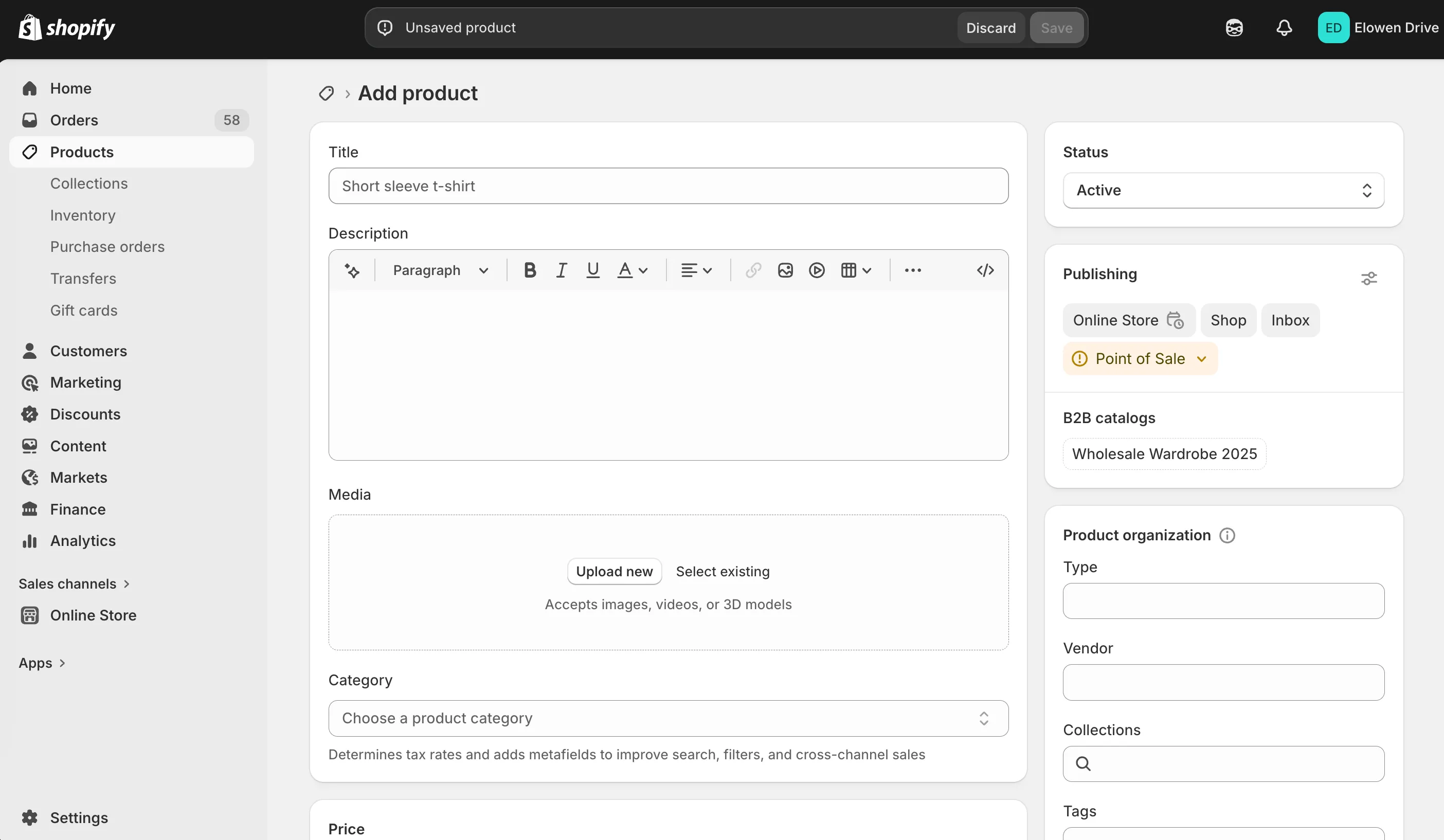
What makes a complete product
A well prepared product listing includes the following key elements:
| Title | A clear, descriptive product name |
| Description | Detailed information about features and benefits |
| Price | The selling price of the product |
| Images | High-quality photos from multiple angles |
| Weight | Required for accurate shipping rate calculations |
| Sales channels | Where the product will be available (Online Store, Facebook, Instagram, etc.) |
| SEO | Custom page title, meta description and URL |
Tip
If you don’t have a product ready to add, you can use the sample details from the Lesson companion PDF.
Add your first product
- In your Shopify admin, go to Products.
- Click Add product.
- Enter the product information:
- Product title – Use a clear, customer-friendly name
- Description – Write a compelling description highlighting features
- Media – Upload high-quality product images (drag and drop or click Add images to upload)
- Under Pricing:
- Price – Enter the selling price
- Compare at price (optional) – Original price to show a discount
- Cost per item (optional) – Your cost for profit tracking and inventory
- Scroll to the Shipping section:
- Weight – Enter the product weight (required for shipping calculations)
- Requires shipping – Check this box for physical products (uncheck for digital downloads)
- Scroll to the Sales channels and apps section:
- Check Online Store to make the product visible on your website
- Scroll to the Search engine listing preview section and customize the page title, meta description, and URL:
- Click Edit website SEO
- Customize the Page title and Meta description for better search visibility
- Review or edit the URL and handle
- Click Save.
Warning
All products must have a weight set for customers to see the correct shipping costs at checkout.
Creating collections
Once you have added products, collections allow you to organize them into groups so customers can easily find what they are looking for. Collections are like categories (e.g. T-Shirts, Summer Collection, Best Sellers).
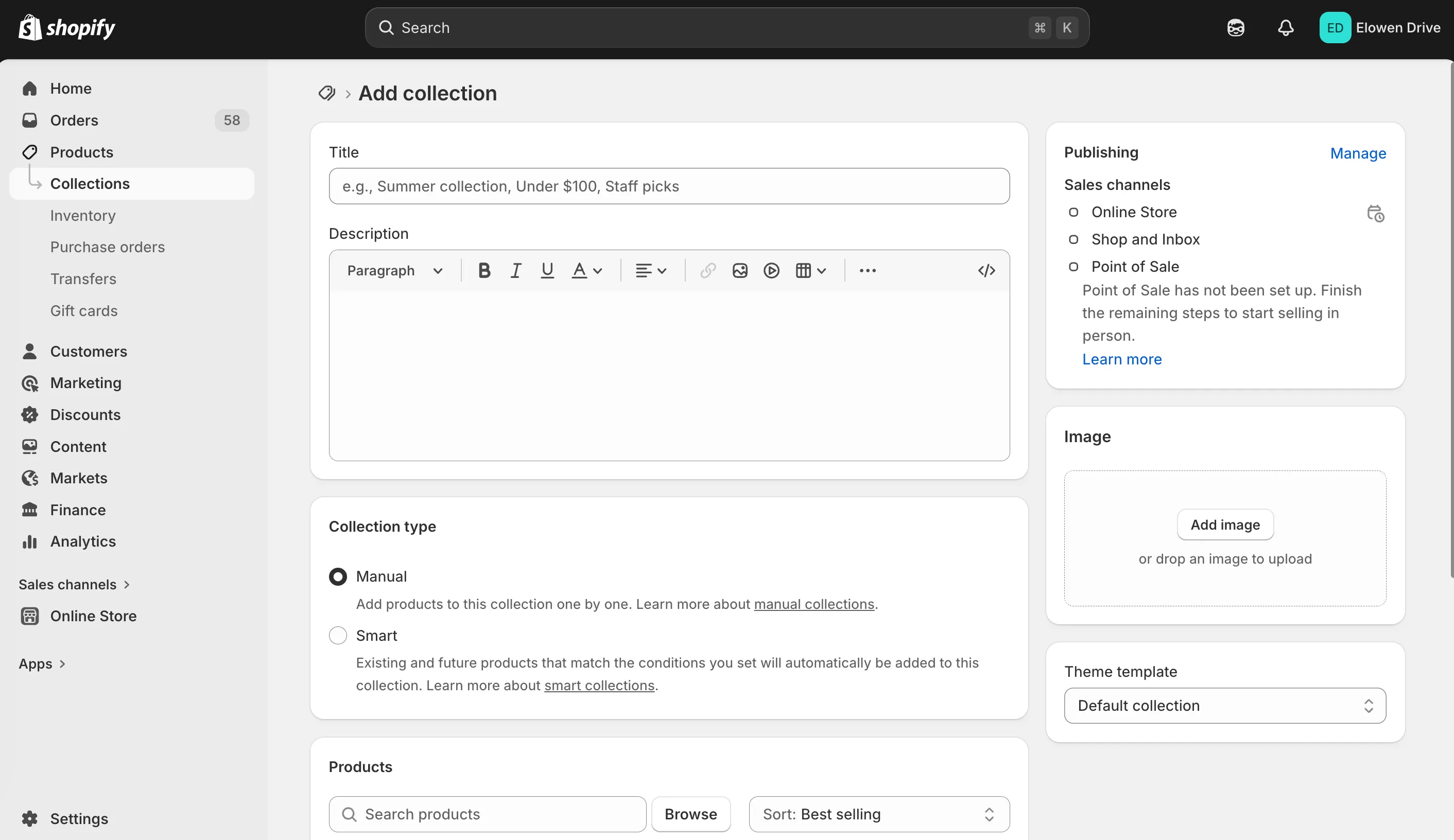
Types of collections
There are two types of collections in Shopify:
- Manual collections: You choose and add products yourself
- Smart (automated) collections: Products are added automatically based on rules you set
As a beginner, it’s recommended to start with manual collections. Once you are comfortable with Shopify and have a larger product catalog, you can use smart collections.