Shipping has many moving parts. It’s important to understand the key concepts and how they work together to ensure your store is set up correctly. When you understand how shipping works, you can make informed decisions about what works best for your business and how to integrate shipping costs into your pricing strategy.
Why shipping matters
Shipping is not only important details that customers see at checkout, it can often make or break a sale if there are surprise fees or delays.
| Consideration | Why it matters |
|---|---|
| Checkout requirement | Customers cannot complete checkout without at least one shipping zone and rate. |
| Profit margins | Shipping costs that are too low can erase your profit on every order. |
| Where you can sell | Shipping zones determine which countries and regions your store is available to. |
Key shipping concepts
These three terms work together in a hierarchy. Understanding the order makes setup much easier:
- Shipping Profile → The overall set of shipping rules for a group of products
- Shipping Zone → The geographic areas (countries or regions) you ship to
- Shipping Rate → The actual price customers pay to ship their order
Profiles organize your products → Zones define where you ship → Rates define how much it costs.
Shipping profiles
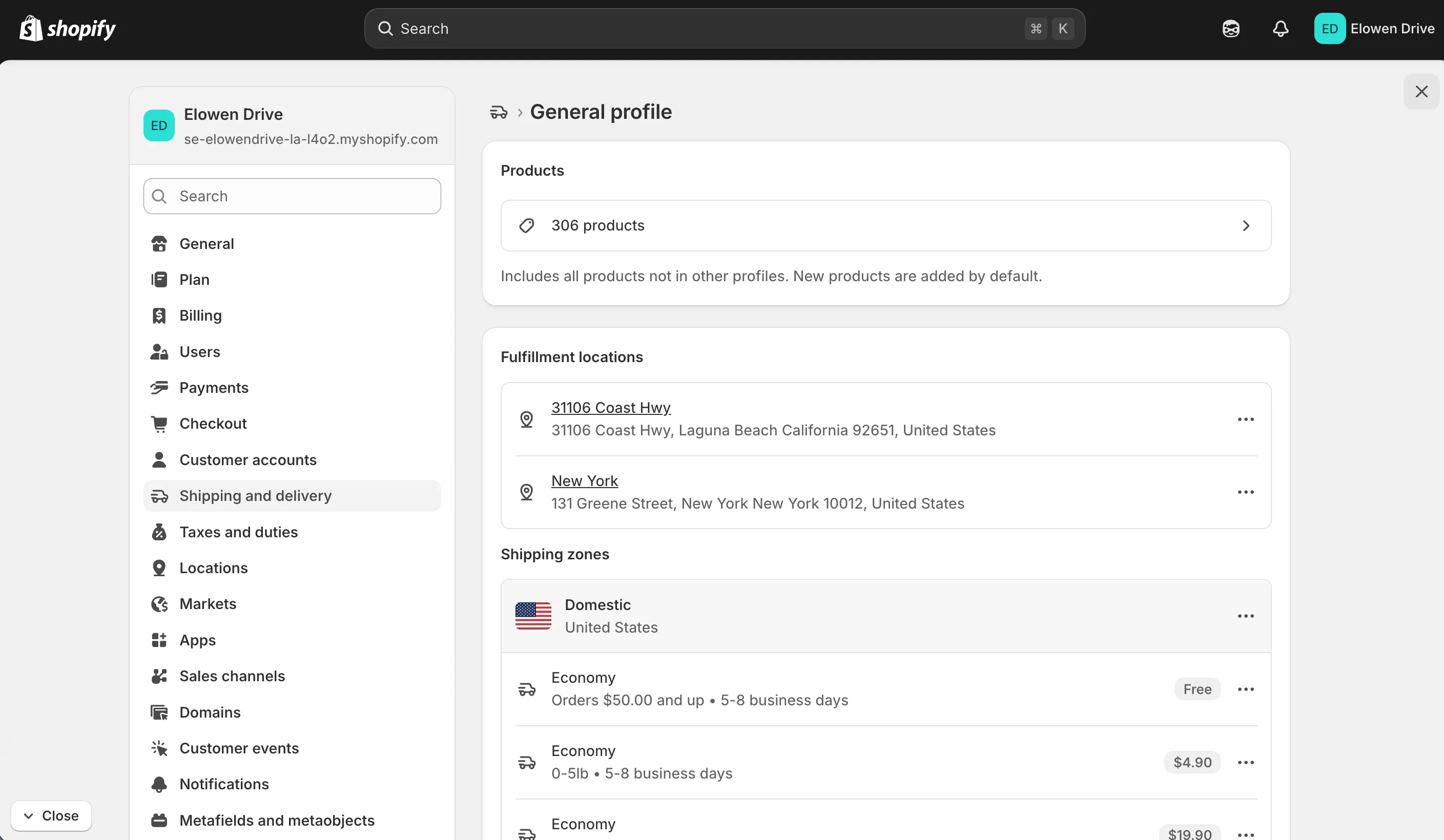
A shipping profile is a set of shipping rules (zones and rates) that can be applied to specific products. Most new merchants only need the General Shipping Profile that includes all of your products.
Tip
Start with the general profile that’s automatically created for you. You can create more profiles later if you have very different types of products (e.g. lightweight items vs heavy/bulky items).
Access your shipping profiles
- In your Shopify admin, go to Settings → Shipping and delivery.
- Under Store default, click General profile.
- All products listed in your store are included in the General profile.
Shipping zones
A shipping zone is a group of countries or regions that share the same shipping rates. Most new stores start with a domestic zone that includes the country of your store.
Create a domestic shipping zone
- In your Shopify admin, go to Settings → Shipping and delivery.
- Under Store default, click General profile.
- In the Shipping zones section, click Add zone
- Enter a zone name (e.g. “Domestic” or “Canada”).
- Click Add countries/regions and select your country.
- Click Done.
Adding weight-based rates
After you have created a shipping zone, you can add weight-based rates to it. This is the most common type of shipping rate and is recommended for most new stores because they reflect actual shipping costs more accurately.
How to add a weight-based shipping rate
- In your Shopify admin, go to Settings → Shipping and delivery.
- Under Store default, click General profile.
- Under Domestic, click the three dots and select Edit.
- Under Shipping rates, click Add rate.
- Enter a rate name (e.g. “Standard shipping”).
- Select Weight-based under Rate type.
- Set the pricing:
- First weight (e.g. first 1 lb = $8)
- Additional weight (e.g. $2 per extra lb)
- Optionally add a handling fee to cover packaging.
- Click Save.